Continuation of: Install Latest Docker Engine on Ubuntu — make sure Docker is installed before following along.
1. Version & System Info
Start by confirming Docker is running correctly.
# Docker Engine version
docker --version

# Full client + server info
docker info

# Docker Compose version (v2)
docker compose version

# Buildx version
docker buildx version
2. Working with Images
Pull an Image
# Pull the latest tag
docker pull nginx

# Pull a specific version
docker pull nginx:1.25-alpine

# Pull from a private registry
docker pull registry.example.com/myapp:latest
List & Inspect Images
# List all local images
docker images

# Same, with full image IDs
docker images --no-trunc

# Filter by name
docker images nginx

# Inspect image layers and metadata
docker inspect nginx

# Show image history (layers)
docker history nginx
Tag & Push Images
# Tag a local image for a registry
docker tag myapp:latest registry.example.com/myapp:v1.0

# Push to Docker Hub
docker push yourusername/myapp:latest

# Push to a private registry
docker push registry.example.com/myapp:v1.0
Remove Images
# Remove a specific image
docker rmi nginx

# Force-remove (even if containers use it)
docker rmi -f nginx:1.25-alpine

# Remove all dangling (untagged) images
docker image prune

# Remove ALL unused images (not just dangling)
docker image prune -a
3. Building Images
Basic Build
# Build from Dockerfile in current directory
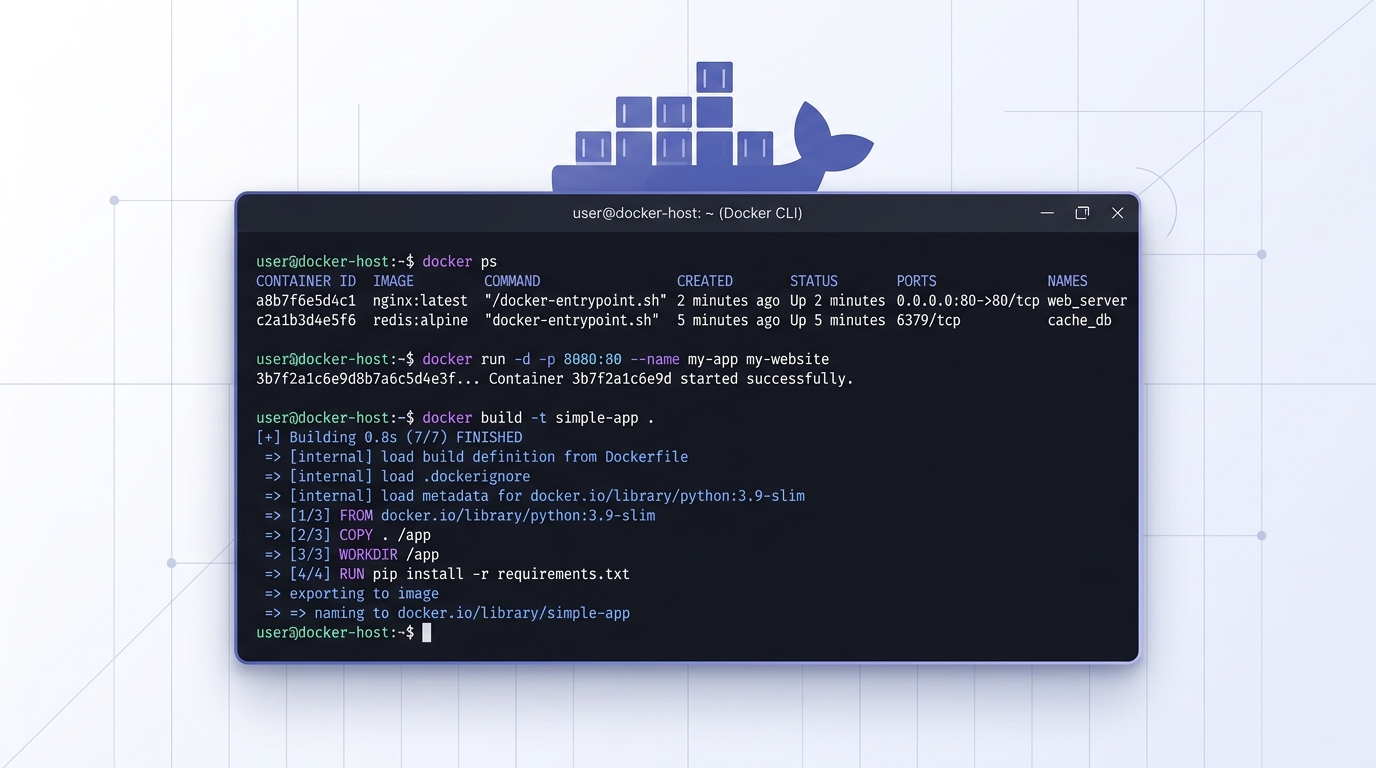
docker build -t myapp:latest .

# Build from a specific Dockerfile
docker build -f Dockerfile.prod -t myapp:prod .

# Pass build arguments
docker build --build-arg NODE_ENV=production -t myapp .

# Build without using the cache
docker build --no-cache -t myapp .
Multi-stage Build Example
# Dockerfile
FROM node:20-alpine AS builder
WORKDIR /app
COPY package*.json ./
RUN npm ci
COPY . .
RUN npm run build

FROM node:20-alpine AS runner
WORKDIR /app
COPY --from=builder /app/dist ./dist
COPY --from=builder /app/node_modules ./node_modules
CMD ["node", "dist/index.js"]
docker build -t myapp:slim .4. Container Lifecycle
Run Containers
# Run a container (foreground)
docker run nginx

# Run in detached (background) mode
docker run -d nginx

# Run with a custom name
docker run -d --name my-nginx nginx

# Map host port 8080 → container port 80
docker run -d -p 8080:80 --name web nginx

# Run interactively with a shell
docker run -it ubuntu bash

# Auto-remove container on exit
docker run --rm alpine echo "Hello Docker"

# Set environment variables
docker run -d -e APP_ENV=production -e DB_HOST=db myapp

# Run with resource limits
docker run -d --memory="512m" --cpus="1.0" myapp
List Containers
# Running containers only
docker ps

# All containers (running + stopped)
docker ps -a

# Show only container IDs
docker ps -q

# Filter by status
docker ps -f "status=exited"
Start / Stop / Restart
# Start a stopped container
docker start my-nginx

# Stop a running container (graceful — SIGTERM)
docker stop my-nginx

# Stop with a timeout (seconds)
docker stop -t 30 my-nginx

# Immediately kill (SIGKILL)
docker kill my-nginx

# Restart a container
docker restart my-nginx

# Pause / unpause (freeze processes)
docker pause my-nginx
docker unpause my-nginx
Remove Containers
# Remove a stopped container
docker rm my-nginx

# Force-remove a running container
docker rm -f my-nginx

# Remove all stopped containers
docker container prune
5. Interacting with Running Containers
Execute Commands
# Open an interactive shell in a running container
docker exec -it my-nginx bash

# Run a one-off command
docker exec my-nginx nginx -t

# Run as a specific user
docker exec -u root -it my-nginx sh
Logs
# View logs
docker logs my-nginx

# Follow logs in real time
docker logs -f my-nginx

# Show last 100 lines
docker logs --tail 100 my-nginx

# Logs with timestamps
docker logs -t my-nginx

# Since a specific time
docker logs --since="2024-01-01T00:00:00" my-nginx
Copy Files
# Copy a file from container to host
docker cp my-nginx:/etc/nginx/nginx.conf ./nginx.conf

# Copy from host to container
docker cp ./nginx.conf my-nginx:/etc/nginx/nginx.conf
Inspect & Stats
# Full container details (JSON)
docker inspect my-nginx

# Extract a specific field (IP address)
docker inspect -f '{{range .NetworkSettings.Networks}}{{.IPAddress}}{{end}}' my-nginx

# Real-time resource usage
docker stats

# Stats for a specific container (no-stream = snapshot)
docker stats my-nginx --no-stream
6. Volumes & Bind Mounts
Named Volumes
# Create a volume
docker volume create mydata

# List all volumes
docker volume ls

# Inspect a volume
docker volume inspect mydata

# Mount a named volume when running a container
docker run -d -v mydata:/var/lib/postgresql/data postgres

# Remove a volume
docker volume rm mydata

# Remove all unused volumes
docker volume prune
Bind Mounts
# Mount a host directory into the container (read-write)
docker run -d -v $(pwd)/html:/usr/share/nginx/html nginx

# Read-only bind mount
docker run -d -v $(pwd)/config:/etc/app/config:ro myapp
tmpfs Mount (in-memory, not persisted)
docker run -d --tmpfs /tmp:size=100m myapp7. Networking
Basic Commands
# List all networks
docker network ls

# Inspect a network
docker network inspect bridge

# Create a custom bridge network
docker network create mynet

# Create with a custom subnet
docker network create --driver bridge --subnet 172.20.0.0/16 mynet

# Run a container on a custom network
docker run -d --network mynet --name app myapp

# Connect a running container to a network
docker network connect mynet my-nginx

# Disconnect from a network
docker network disconnect mynet my-nginx

# Remove a network
docker network rm mynet
Container-to-Container Communication
When containers share the same custom bridge network, they can reach each other by name:
docker network create backend

docker run -d --name db --network backend postgres
docker run -d --name api --network backend -e DB_HOST=db myapi
Inside api, db resolves to the Postgres container’s IP automatically.
8. Docker Compose
Essential Commands
# Start all services (build images if needed)
docker compose up

# Start in detached mode
docker compose up -d

# Build images before starting
docker compose up --build

# Stop and remove containers + networks
docker compose down

# Also remove volumes
docker compose down -v

# Also remove images built by compose
docker compose down --rmi all
Service Management
# View running services
docker compose ps

# Follow logs for all services
docker compose logs -f

# Logs for a specific service
docker compose logs -f api

# Exec into a running service container
docker compose exec api bash

# Run a one-off command in a service (creates a new container)
docker compose run --rm api python manage.py migrate

# Scale a service to N replicas
docker compose up -d --scale worker=3
Compose File Tips
# docker-compose.yml
services:
  app:
    build: .
    ports:
      - "3000:3000"
    environment:
      - NODE_ENV=production
    depends_on:
      db:
        condition: service_healthy
    restart: unless-stopped

  db:
    image: postgres:16
    volumes:
      - pgdata:/var/lib/postgresql/data
    environment:
      POSTGRES_PASSWORD: secret
    healthcheck:
      test: ["CMD", "pg_isready", "-U", "postgres"]
      interval: 10s
      timeout: 5s
      retries: 5

volumes:
  pgdata:
9. Buildx — Multi-Platform & Advanced Builds
Setup
# List builders
docker buildx ls

# Create and use a new builder (supports multi-platform)
docker buildx create --name mybuilder --use

# Bootstrap (start) the builder
docker buildx inspect --bootstrap
Build for Multiple Platforms
# Build for both amd64 and arm64, push to registry
docker buildx build \
  --platform linux/amd64,linux/arm64 \
  -t yourusername/myapp:latest \
  --push .
Build Cache
# Use GitHub Actions cache
docker buildx build \
  --cache-from type=gha \
  --cache-to type=gha,mode=max \
  -t myapp:latest .

# Use a local cache directory
docker buildx build \
  --cache-from type=local,src=/tmp/docker-cache \
  --cache-to type=local,dest=/tmp/docker-cache,mode=max \
  -t myapp:latest .
10. System Cleanup
Keeping your Docker host clean prevents disk bloat.
# Show disk usage by Docker
docker system df

# Detailed disk usage breakdown
docker system df -v

# Remove ALL unused resources (containers, images, networks, cache)
docker system prune

# Also include volumes (⚠️ destructive — data loss possible)
docker system prune --volumes

# Aggressive: remove all unused images too
docker system prune -a
11. Advanced One-Liners & Tips
Stop All Running Containers
docker stop $(docker ps -q)Remove All Stopped Containers
docker rm $(docker ps -aq -f status=exited)Remove All Images
docker rmi $(docker images -q)Watch Container Events in Real Time
docker eventsDiff: What Changed Inside a Container
docker diff my-nginx
# A = Added, C = Changed, D = Deleted
Export & Import Container Filesystem
# Export container filesystem as a tar
docker export my-nginx > nginx-backup.tar

# Import as a new image
cat nginx-backup.tar | docker import - my-nginx:backup
Save & Load Image Archives
# Save an image to a .tar file (includes all layers)
docker save myapp:latest -o myapp.tar

# Load it on another machine
docker load -i myapp.tar
Environment Debugging
# Print all environment variables inside a container
docker exec my-nginx env

# Show processes inside a container
docker top my-nginx

# Show port mappings
docker port my-nginx
Quick Reference Cheat Sheet
| Task | Command |
|---|---|
| Pull image | docker pull nginx |
| List images | docker images |
| Build image | docker build -t app . |
| Run container | docker run -d -p 80:80 nginx |
| List containers | docker ps |
| Stop container | docker stop <name> |
| Shell into container | docker exec -it <name> bash |
| View logs | docker logs -f <name> |
| Remove container | docker rm <name> |
| Compose up | docker compose up -d |
| Compose logs | docker compose logs -f |
| System cleanup | docker system prune -a |
What’s Next?
- Writing a Dockerfile: Best practices for production-ready Dockerfiles
- Docker Swarm vs Kubernetes: When to go beyond a single host
- Private Registries: Self-hosting with Gitea or Harbor