How to Open a WhatsApp Chat Directly from a Phone Number with Chronix
Sometimes you have a phone number and want to send a WhatsApp message to that person, but you don’t want to save the number as a contact first.
Normally, you would need to save the number as a contact before starting a conversation through WhatsApp.
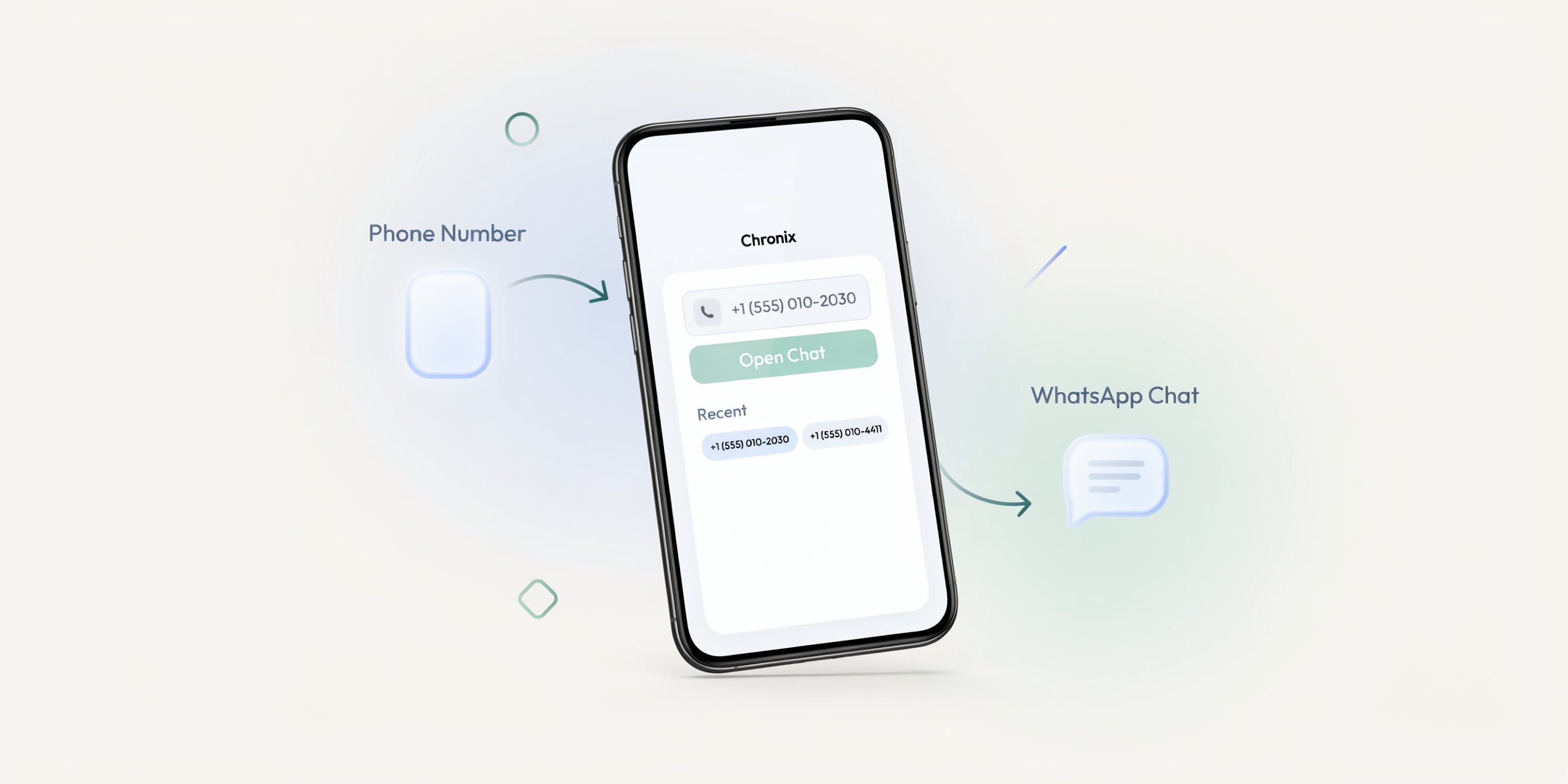
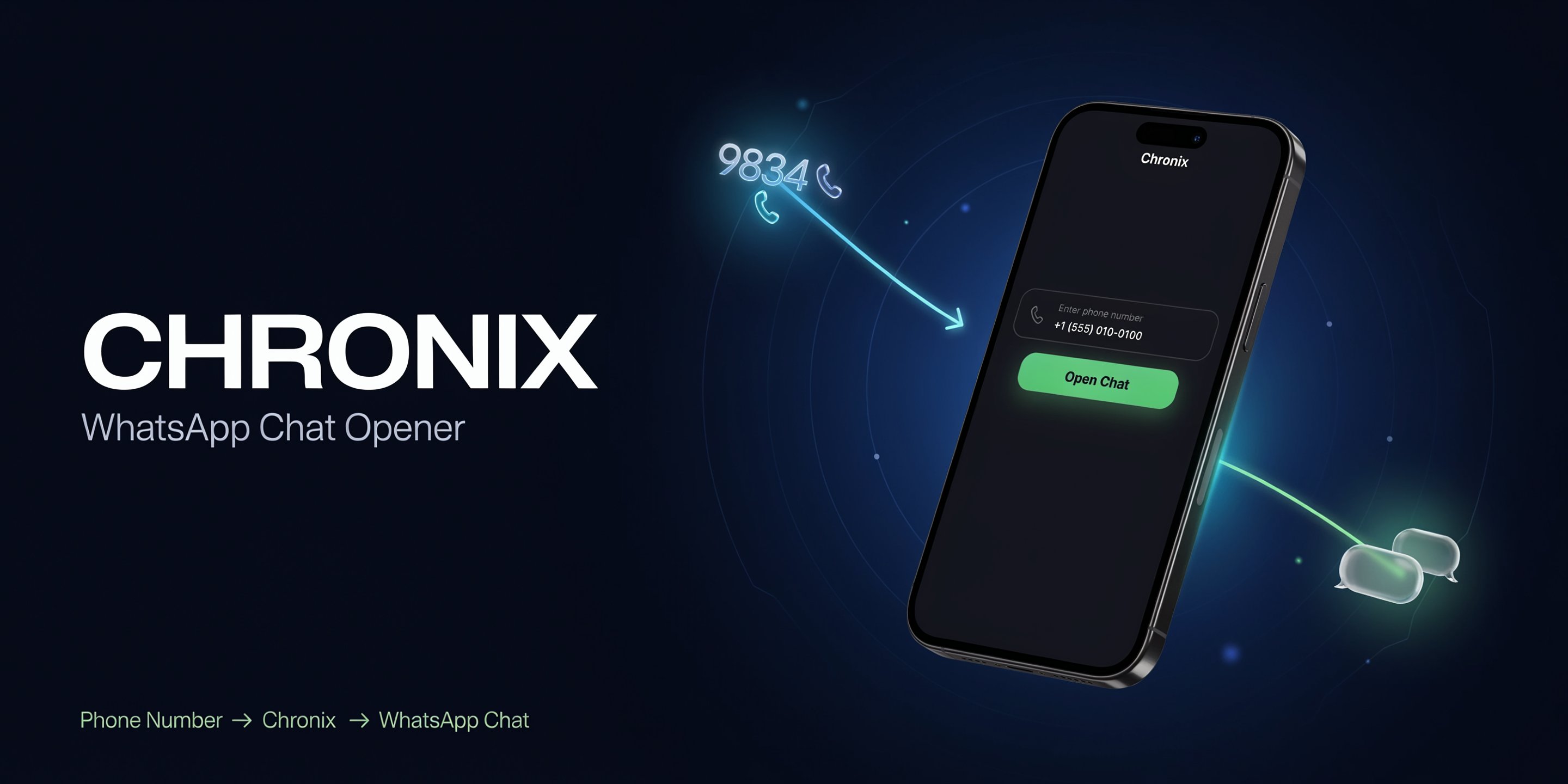
Chronix makes this process simpler with its WhatsApp Chat Opener.
It allows you to enter or paste a phone number and directly open the corresponding WhatsApp conversation.
Download Chronix
Want to try Chronix yourself?
You can download the latest Android APK from the GitHub release:
Note: Chronix is currently distributed as an Android APK. You may need to allow installation from unknown sources on your Android device.
What Is the WhatsApp Chat Opener?
The WhatsApp Chat Opener is a utility integrated into Chronix, a collection of useful everyday tools built with React Native and Expo.
It provides a simple interface where you can enter or paste a phone number and open the corresponding WhatsApp conversation directly.
The basic workflow is:
Phone Number
     ↓
Number Normalization
     ↓
WhatsApp Chat Link
     ↓
WhatsApp
     ↓
Chat
You don’t need to save the phone number as a contact just to start the conversation.
Why Use a WhatsApp Chat Opener?
There are many situations where you may already have a phone number but don’t want to save it permanently.
For example:
- You copied a number from a website
- Someone sent you a number through another application
- You received a call from an unknown number
- You need to contact someone only once
- You want to quickly start a WhatsApp conversation
- You don’t want unnecessary numbers in your contacts
Instead of manually handling the number, you can simply copy it, open Chronix, paste it, and open WhatsApp.
Simple Workflow
Copy Number
     ↓
Open Chronix
     ↓
Paste Number
     ↓
Open WhatsApp
How to Use the WhatsApp Utility in Chronix
Using the utility is straightforward.
Step 1: Open Chronix
Launch the Chronix application on your Android device.
From the Active Utilities section, select:
WhatsAppStep 2: Enter or Paste a Phone Number
The utility provides a phone number input field.
You can manually enter a number or paste one that you have copied.
For example:
9876543210You can also paste a number containing a country code:
+91 98765 43210The utility handles the formatting automatically.
Step 3: Open WhatsApp
After entering the number, tap:
Open WhatsAppChronix will create a WhatsApp chat link and pass it to the Android system.
WhatsApp will then open the conversation for that number.
How Does It Work?
The utility uses WhatsApp’s chat-link format.
For example, an Indian phone number such as:
+91 98765 43210is converted into:
919876543210Chronix then creates:
https://wa.me/919876543210This link is handed over to the operating system, which opens WhatsApp and navigates to the corresponding chat.
Phone Number Formatting
Phone numbers can often contain different characters depending on where they were copied from.
For example:
+91 98765 43210or:
+919876543210or:
9876543210The utility removes unnecessary characters before creating the WhatsApp link.
For example:
+91 98765 43210
        ↓
919876543210
For a 10-digit Indian number, the application automatically adds the Indian country code:
9876543210
        ↓
919876543210
This makes the utility convenient when copying numbers from different sources.
Do I Need to Save the Number?
No.
One of the main advantages of this utility is that the phone number doesn’t need to be saved as a contact just to open the WhatsApp conversation.
This is particularly useful for temporary conversations.
For example, if you need to contact a delivery person, service provider, seller, or someone you may not need to contact again, you can open the conversation without permanently adding their number to your contacts.
What Is Chronix?
Chronix is a personal utility application that brings multiple small and useful tools together in one place.
Instead of installing separate applications for simple tasks, Chronix provides a collection of utilities within a single application.
Some of the currently available utilities include:
- Age Calculator
- Time Converter
- Service Calculator
- Salary Leave Calculator
- WhatsApp Chat Opener
The utilities are organized into categories so that they can be easily discovered as the application grows.
Built with Expo and React Native
Chronix is built using React Native with Expo.
The WhatsApp utility uses React Native’s Linking API to open the WhatsApp chat link.
A simplified version of the implementation looks like this:
import { Linking } from "react-native";

const openWhatsApp = async (phoneNumber: string) => {
  let phone = phoneNumber.replace(/\D/g, "");

  if (phone.length === 10) {
    phone = `91${phone}`;
  }

  const whatsappUrl = `https://wa.me/${phone}`;

  await Linking.openURL(whatsappUrl);
};
The application doesn’t need access to WhatsApp messages or the user’s WhatsApp account.
It simply creates the appropriate chat URL and asks the operating system to open it.
Where Can This Be Useful?
The utility can be useful in many everyday situations.
From a Phone Call
You may receive a call from a number that isn’t saved in your contacts.
Instead of saving the number first, you can copy the number and use the WhatsApp utility.
From a Website
You might find a phone number on a website and want to contact the person through WhatsApp.
Copy the number and open it directly.
From Another Application
If another application provides a phone number that you need to contact through WhatsApp, you can copy the number and use Chronix.
Future Improvements
The current version focuses on manually entering or pasting phone numbers.
A possible future improvement is integrating Android call history with the utility.
This could allow a workflow such as:
Recent Calls
     ↓
Select a Number
     ↓
Open WhatsApp
     ↓
Start Conversation
This would make the utility even faster when contacting someone who has recently called.
Privacy
The WhatsApp Chat Opener does not need access to your WhatsApp messages or conversations.
Its primary purpose is simply to construct a WhatsApp chat URL from the phone number you provide and open it through the operating system.
No message is automatically sent by the utility.
You still control the conversation from within WhatsApp.
Conclusion
The WhatsApp Chat Opener is a small utility, but it can remove an unnecessary step when you need to contact someone through WhatsApp.
Instead of:
Phone Number
     ↓
Save Contact
     ↓
Open WhatsApp
     ↓
Find Contact
     ↓
Start Chat
you can simply:
Phone Number
     ↓
Chronix
     ↓
Open WhatsApp
     ↓
Start Chat
As Chronix continues to grow, the goal is to bring more practical utilities together in a single application so that common everyday tasks can be completed quickly without needing a separate tool for each one.
More utilities are coming to Chronix.
Happy exploring!